For Nonprofits Blog
You're changing the world. We want to help.
Five ways to use Google Apps for Nonprofits for your nonprofit
Friday, March 8, 2013
As we continue to dive into how Google for Nonprofits can work for your organization, we’ve met some great product experts who have shared insightful ways specifically for nonprofits to use Google products. Last week, we met two Google Apps experts, Asha Toulmin and Marianna Kerppola, who walked us through different uses of tools like Google Calendar, Gmail and Docs. If you couldn’t make it, here are five tips we learned to help you take advantage of Google Apps.
You can also watch the full video below.
1. Use labels and filters to organize your Gmail.
If you have a specific event or team you’re working with, you can create custom labels and filters and assign them to groups of emails. When you need to access information, you can simply sort by labels and filters and find all the related emails.
2. Connect with your team instantly through Gmail.
Need to collaborate with someone immediately? You can use Gmail to chat, video chat or make a phone call directly to a colleague - allowing immediate interaction without ever leaving your inbox.
3. Schedule meetings easily using shared calendars.
Using shared calendars in Google Calendar, you can view coworkers’ calendars and see when each team member is available. You can quickly find times that work for everyone and eliminate the back and forth that often comes with scheduling.
4. Keep everyone on the same page in meetings by attaching files
.
Google Calendar allows you to attach documents from your computer and your Drive directly to the meeting invitation. Make sure all your meeting invitees are looking at the same information by sharing an agenda and background resources in your meeting invite.
5. Organize your documents and access them anywhere.
With Google Drive, you can upload, create and share documents in the cloud - allowing you to access them anytime, anywhere. Help your nonprofit take it a step further by organizing materials into
shared folders.
These
automatically updated folders
can be accessed both online and offline by anyone who is granted access.
Have questions? Our product experts, Asha and Marianna, have answered the top questions from the Hangout with short video responses. Check out their
full set of video responses on our YouTube channel.
Posted by Katie Kellogg, Google for Nonprofits team
Google Apps for Nonprofits is now free for all nonprofits
Monday, February 25, 2013
Good news! As of today, any nonprofit organization that is part of Google for Nonprofits can get Google Apps for Nonprofits for free. Previously, the free version of this program was only available to nonprofits with fewer than 3,000 users. Now, whether your nonprofit is 10 people or 10,000, you are eligible to start using Gmail, Calendar, Drive and more.
Google Apps for Nonprofits allows your organization to reduce IT costs and helps your team collaborate more effectively. The suite of tools uses cloud computing to securely store and update documents, calendars and email in real-time - meaning you can access data anywhere, anytime. Google manages all of the updating and maintenance in the cloud, so you’ll never be required to install hardware or update software. And if you need help, we have a 24/7 support team available.
If your organization is ready to begin using Google Apps for Nonprofits and is already in the program, just enroll with the instructions in your acceptance email. If you’re new to Google for Nonprofits, start by
joining the program.
Once accepted, we’ll send you instructions on how to enroll in Google Apps for Nonprofits and
other great products
.
Need help getting started? Check out our step-by-step
getting started guides
that can help you get up and running successfully. And, don’t forget to join us tomorrow as we learn best practices for nonprofits from Google Apps experts in a
Hangout on Air.
Posted by Katie Kellogg, Google for Nonprofits team
Samasource improves international operations with Google Apps for Nonprofit
Thursday, February 21, 2013
Here at Google for Nonprofits we’re always looking for ways to help your organization thrive. Whether it’s
brainstorming ideas wit
h Docs, minimizing costs through cloud based storage or managing international teams with Hangouts, we want to help make our tools work for you.
One nonprofit, Samasource, has done just that.
Samasource
is a social business dedicated to reducing poverty by connecting women, youth and refugees to meaningful work over the Internet. They employ thousands of workers internationally and, since 2008, they’ve delivered over $2 million in wages.
Samasource uses the suite of Google for Nonprofits products, specifically Google Docs, Spreadsheets, Forms and Calendars, to manage workers in multiple countries. By using Google Apps, they are able to efficiently run their operations at a low cost. See more of their story below.
.
Want to learn more about how you can use Google Apps in your nonprofit?
Join us Tuesday, February 26th at 10 am PT/1 pm ET
on our Google+ page as we hear from Google Apps experts.
Posted by Katie Kellogg, Google for Nonprofits team
Going above and beyond with Google Apps for Nonprofits
Wednesday, February 20, 2013
Last week, we
walked through
the tools available in the Google for Nonprofits program and heard some
great stories
of organizations using those products in effective and exciting ways. As part of our new series, we want to share specifically how you can use this suite of products to go above and beyond for your nonprofit.
So next up, we’re meeting two product experts who will show us how Google Apps can be used for nonprofits. They’ll share best practices with Google Calendar, Gmail and Docs, discuss real life examples and walk through how you can use Google Apps to organize a fundraiser.
Join us Tuesday, February 26th at 10 am PT/ 1pm ET on Google+. Don’t forget to RSVP on
our Google+ event
. If you have any questions about Google Apps for our experts, leave them as a comment in the event.
Posted by Asha Toulmin, Agency team
#OurImpact: Impact Report Template
Thursday, December 20, 2012
A great way to share
the impact you’ve made with your donors and advocates is through an impact report that quantifies the difference you’ve made in your field over the past quarter or a year. To help you showcase that impact, our team has created
this impact report template
. Make sure to make a copy before using it and then customize it fit your needs.
Do you already use an impact report? We’d love for you to share it with us on
our Google+ page.
Posted by Katie Kellogg, Google for Nonprofits team
#OurImpact: Nuru International works to end poverty
Wednesday, December 12, 2012
In celebrating the way nonprofits have made an impact, we’d like to spotlight another nonprofit in our program that’s changing lives in Africa.
Nuru International
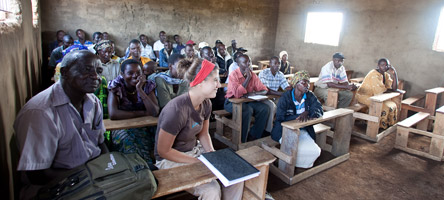
is a social venture committed to ending extreme poverty in remote, rural areas by offering locally-led training in agriculture, personal finance, healthcare, water sanitation and education. Beginning in Kuria, Kenya in September 2008, Nuru uses Google for Nonprofits products to help them show their impact and function as a virtual organization.
Courtesy of Nuru International
Nuru demonstrates how they equip people with tools and knowledge to lead their communities out of extreme poverty to their donors through videos and
their YouTube channel.
Kim Do, Nuru’s Marketing and Mobilization Director says “YouTube gives us the ability to seamlessly deliver our latest video updates in a meaningful, dynamic way as our donors are on the go.”
Beyond using Google tools to raise awareness, the organization also uses Google Apps to help eliminate overhead costs so that funds raised are equipping people with tools and knowledge to lead their communities out of poverty.
“We are a virtual organization with employees communicating across twelve time zones,” says Do. “Our strategic decision to forgo a central office in the US enables us to invest a greater percentage of our funding in our work in Kuria, Kenya. The array of tools that Google provides-specifically Gmail, Gchat, Calendar, Google Docs and Sites -- is integral to our work and success as a virtual organization. We love the ‘real-time’ nature of Google Docs and have used them to create dynamic campaigns, administrate internal staff surveys, maintain a shared communications calendar, create directories of social media and fundraising sites and do so much more.”
If you’d like to learn more about Nuru and how they make their impact, check out our
full case study on Nuru International.
And if using YouTube and Google Apps is a good fit for your organization, you can continue learning with our
video tutorials
and
get started guides
.
Posted by Katie Kellogg and the Google for Nonprofits team
#OurImpact: WITNESS’ 20 Year Impact
Friday, December 7, 2012
We know that the impact you and other nonprofits make on the world didn’t happen just in 2012. Reaching a single goal or milestone can sometimes take years. That is why we’re so excited to share in your journey and milestones -- milestones like
WITNESS
, reaching
20 years
of bringing human rights violations to the world’s eyes.
WITNESS, an organization that uses video and storytelling to open the world’s eyes to human rights violations, spurring public engagement and policy change, began in 1992. Musician and human rights advocate Peter Gabriel joined together with Human Rights First and Rebook Human Rights Foundation to co-found WITNESS.
Since the organization’s creation, they have operated at the nexus of human rights and technology, helping millions of ordinary citizens around the world speak the truth to those in power through tools like video cameras and the Internet. In that goal,
WITNESS has partnered with more than 300 human rights groups in 80-plus countries, trained over 3,000 human rights defenders, developed widely used training materials and tools for video creation and safety, created the first dedicated online platform for human rights media (the HUB), and included video in over 100 campaigns.
And how did they do it? Using Google products has helped them stay organized and generate awareness. For years, Google Apps have helped traveling staff stay updated and coordinated with Gmail and Google calendar. Google Docs has enabled them to coordinate on everything from blog posts to media lists.
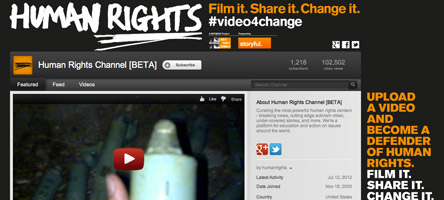
Among other awareness initiatives, WITNESS has also created a branded YouTube channel with millions of views and thousands of subscribers. They created an extensive new channel on YouTube dedicated to Human Rights, with partner Storyful.
Other Google products like AdWords, Maps, Analytics and
Google+
have connected WITNESS with people around the world and streamline their operations. Communication manager at WITNESS, Matisse Bustos Hawkes put it like this “Google for Nonprofits has helped us distribute compelling content while also streamlining our day-to-day business operations, all at no charge, that kind of contribution really can’t be underestimated.”
Want to learn more about WITNESS? Check out the full case study on the Google for Nonprofits site
here
or join them on their
Google+ Page
. They’re hosting a series of Hangouts to celebrate their 20 year anniversary.
Want more case studies? They’re one of our favorite resources to share how nonprofits are using Google for Nonprofits to increase their reach and impact. Check out all of them
here
. If you’re interested in sharing your story, tell us
here
and, of cours
e, share it with us on our
Google+ page
using #OurImpact in your post.
Posted by Katie Kellogg and the Google for Nonprofits team
Grow Your Gifts: Making the Most of Donor Information
Tuesday, September 25, 2012
In our recent blog posts, we saw
how to use AdWords to bring in new donors
and learned a few
tricks to make emails more effective
in attracting donations from people already familiar with your cause. However, monetary donations aren’t the only valuable resources your donors provide — information on personal giving trends can help you understand your community better and turn one-time donors into active and on-going givers.
Today, we’re going to look at a few ways
Google Docs and Calendar can help you organize the information you collect when people donate and better use that information going forward. Here are our top three tips:
1. Track more information in Google Spreadsheets:
You can use Google Spreadsheets to easily create, share and edit spreadsheets online. Beyond keeping names, addresses and phone numbers of your donors, it’s helpful to track the donation type (one time
gift
/monthly/yearly), amount given and the date of gift.
A
ccording to a tip by
Blackbaud
, tracking the date of a donor's gift can help provide you with better insights about when your donor is in the mood to give or when it is feasible for them to do so
, making it psychologically easier for them to give if you ask for another donation at the same time in future months. Check out the full article
here
for more information.
2. Use filters to sort your data:
With large amounts of information, it can be tricky to organize or segment what you have. Using Google’s Filter feature, you can see a more digestible view of your data by hiding information that you temporarily want to take out of view. Filters are especially useful when you want to organize communications or mailings. You can use this feature on one or multiple columns in your Google Spreadsheet.
So if we want to create a filter for people who donated the first of the month (a likely payday), we would select the column the holds that information, then select Filter from the Tools menu and put a check mark next to all dates that are correspond to the first of the month. Using this filtered data, we can create mailing lists in seconds.
You can also use filters to target volunteers. If you have an event coming up in a specific geographic area, you could filter for the city or zip code your donors live in, then enabling you to email all donors that live in the area of your upcoming event and ask for volunteers or attendees.
To learn more about creating custom filters, check out these
instructions
.
3. Use shared Calendars to ask on time:
Once you know when you want to communicate with different segments of donors, it can be helpful to create events on your calendar to remind you when to send those communications.
If multiple people handle mailings, you can create a new shared calendar. A shared calendar can be viewed and/or edited by anyone who you give access to. By using shared calendars for donor communications, you can create events to remind your team to send out emails, letters, etc. to specific groups or filtered segments. All you’ll need to do is
create new calendar
,
add your events
and then
share it with your team.
We are excited to see how your donations and organizations grow using these tips and we'd love for you to share any of your donor information best practices with us on
our Google+ page
. Join us again later this week when we share our favorite bundle of Google Docs templates designed just for non-profits.
Posted by Katie Kellogg, Google for Nonprofits team
Grow Your Gifts: Two Tips To Make Donation Emails More Effective
Friday, September 21, 2012
We know that using
AdWords and Google Search are great ways to bring in new donors,
especially those that aren’t familiar with your organization. But, what about engaging people already in your network?
Email donations made up 35% of online giving in 2011, according to the
eNonprofit Benchmarks Study
by
M+R Strategic Services
and
Nonprofit Technology Network (NTEN).
In the same study, we also saw the typical non-profit email list grew by 16% from 2010 to 2011. To help you make the most of this growth, we’ve shared a few tips to create more effective donation emails.
1. Tell Your Story:
Like we discussed
earlier this week
, donors want to know their money isn’t being wasted, so show them how you’re using it! Include photos and videos illustrating the impact you in order to engage users.
Gmail allows you insert images inline with your text. Follow these
quick steps
to add images to your email and showcase the change you’re making.
Or you can link a YouTube video to your email. By using our
hyperlink feature
in Gmail, you can make your text connect to a web address. In this case, you would connect to one of your YouTube video or channel URLs.
If you’re looking for more ideas, check out our Visual Storytelling series, where we highlighted non-profits using
photos
,
videos
and more.
2. Be Social:
Individual donors trust their friends and family for information on nonprofits, according to
Hope Consulting’s Money For Good II Report
. Make sure that you not only have your email list
recipients
send emails to their friends and family, but also include hyperlinks to Google+, Facebook, Twitter, etc. to build your community.
Next week, we’ll focus on ways to stay organized using Google tools, how to make the most of the donor information you have and share our bundle of Google Docs templates created
specifically
for non-profits.
Posted by Katie Kellogg, Google for Nonprofits team
Google Apps Highlights
Friday, December 16, 2011
(Cross-posted from the
Official Google Blog
)
The elves got an early jump on the holidays this year by leaving us some surprises in Google Apps over the last few weeks. Sharing from Gmail got a whole lot easier, and Google Calendar can make better use of precious screen space. We also have 10 new Google Apps customer stories to share from the tens of thousands that have gone Google in recent weeks.
Gmail gets more social
Last week we sprinkled a touch of
Google+ into Gmail
, making it easier to connect and share with people from your inbox. You can add people to circles right from an email thread through Gmail’s people widget, share photo attachments with friends and family on Google+ without leaving Gmail, and view a filtered version of your inbox only showing messages from people in your circles. We also improved Gmail’s address book by incorporating contact information shared by your friends, family and colleagues in their Google+ profiles.
New features in the Gmail iOS app
Just yesterday we added several new improvements to the
Gmail app for iOS 4+
. Now you can set up a custom email signature for mobile messages, manage your vacation responder, and view nested labels from your iPhone, iPad or iPod Touch. We also added scribbles, a fun way to spice up messages by adding a quick hand-drawn sketch. You can create scribbles using a range of colors, brush sizes, lines, erasers and spray paints from your touchscreen device.
More free calls right from Gmail
Last year we introduced free domestic calling in Gmail within the U.S. and Canada, and we’re extending this free service for
the whole year of 2012
. We’re happy to help you keep in touch with those special people in your life, for free.
Hide morning and night hours in Calendar
If you don’t often have appointments early in the morning or late at night, a new trick in Google Calendar might be useful. Now you can
hide morning and night hours
, leaving more screen real estate for the times of day when most of your events take place. Give it a try in Calendar Labs.
Who’s gone Google?
Businesses and schools are switching to Google Apps in droves these days. From tiny startups to large enterprises and nonprofits to college campuses, we love hearing the inspiring stories that our customers share. Here’s a new batch of stories for your reading pleasure:
TripIt
,
IPSEN
,
Ebby Halliday
,
Ticket River
,
VigLink
,
HeyZap
,
The Great Books Foundation
,
Utah K-12 schools
, the
U.S. Coast Guard Academy
and
UC Santa Cruz
. Welcome one and all!
For more details and the latest news, check out the
Google Apps Blog
, and keep an eye out for this series here after the holidays. We launched more than 150 improvements to Google Apps in 2011, and we have a ton more in store for 2012!
Posted by Jeremy Milo, Google Apps Team
A Nonprofit Goes Google To Further Enjoyment Of Reading And Learning
Monday, December 5, 2011
Editor's note: Today’s guest blogger is Mark Gillingham, Vice President of
The Great Books Foundation
, a nonprofit educational organization whose mission is to promote reading, thinking, and the sharing of ideas for people of all ages. The Foundation's 60 employees have been using Google Apps for over two years.
For the past 60 years, the Foundation has helped millions of students and adults make the reading and discussion of literature a lifelong source of enjoyment, personal growth, and social engagement.
We offer courses for teachers in person and online. The Foundation also publishes books, anthologies, and materials for all ages to provide quality texts to discuss.
We have a history of using free and open-source applications on our desktop computers and servers that are more flexible and powerful than the paid applications we had been using. Once we learned that Google Apps was available at no cost
for nonprofits under 3,000 users
, I gathered our IT planning committee to plan how to migrate 60 users from our existing system.
We had been using an onsite email system for years because it was part of our file system. Although we upgraded the system every two years, it never seemed up-to-date. We had issues reading certain types of documents and viewing images and web sites. Using the system away from the office caused problems because we needed special applications, which varied by operating system. The calendar was not compatible with our mobile devices and the document repository was difficult to manage. As a result, most staff did not utilize the IT solutions we were offering.
We planned our deployment with a local developer Rachel Baker, whom we met through NTEN (
Nonprofit Technology Network
). She helped us understand what was required for a successful deployment and guided us through the process. We also used the
Google Apps Marketplace
to find a Google Apps reseller,
Cloud Sherpas
, whose specific migration knowledge and software helped us move all of our data.
At launch in 2009, our staff was thrilled to finally use a modern email program with highly reduced spam. Years later, some of us have still not gotten over this giddy feeling. More teams are using Google Docs to share internal and external documents. Google Calendar is the official way we schedule our meeting rooms.
Now in 2011, we're excited to try out
Google+
in our organization to find new ways to collaborate. We are considering using Google+ to provide technical support for our employees. Also, we think our remote workers could use Google+ as an easy way to communicate with their peers and home base while travelling.
Part of my job is seeing the future so I can help direct the Foundation toward technology that will work for them. Google is always improving its products and launching new features. I love it when I can show someone the next new thing. It makes them smile, which makes me smile too.
If you are a U.S. 501c3 nonprofit interested in using Google Apps, please apply for our
Google for Nonprofits program
. If accepted into the program, you can receive up to 3,000 users for free, or a 40% Business discount on more than 3,000 users.
Non US-based organizations can sign up for a
free Google Apps account with 10 users
, or you are welcome to purchase
Google Apps for Business
.
To help you setup Google Apps quickly, Google provides
many deployment resources
, plus a simple in-product
Setup Wizard
.
Posted by Chris Cheng, Google Apps Team
Google Apps Highlights
Friday, November 18, 2011
(Cross-posted on
the Official Google Blog
)
The last few weeks have brought a fresh new look in Gmail, more mobile access options and simpler meeting scheduling tools. Millions of organizations using Google Apps can now use Google+ on their business and university accounts, and we launched a couple Apps-related Google+ Pages ourselves.
Gmail’s new look
Back in July we
previewed
Gmail’s new look, and a couple weeks ago we started letting people
switch to the new design
with one click. The refreshed interface makes it easier to follow conversations and spot the sender with profile pictures for each message. The new look also supports
dynamic screen densities
, so Gmail displays properly whether you’re viewing on a large desktop monitor or a smaller mobile screen. We also added a selection of beautiful
HD themes
to the existing gallery. Finally, we made it easier to perform advanced email searches using a panel of powerful search options that reveals with a single click.
Gmail app for iOS devices
This month we introduced the
Gmail app
for
the iPhone, iPad and iPod touch
, complete with mobile alerts for new mail, a responsive touch screen interface and Gmail mainstays like fast search, conversation view and address auto-complete.
Suggested meeting times in Google Calendar
We’ve heard how frustrating it can be to spend 15 minutes finding a good time for people to convene for a 30 minute meeting, so we made it easier to find a good meeting time in Google Calendar. The
suggested times
feature automatically reviews the availability of meeting invitees, and proposes event times that work for the whole group.
Google+ for organizations using Google Apps
Businesses, schools and organizations with Google Apps can now
use Google+
. Employees and students can create profiles, +1 things they like on the web, share interesting content with their circles and have live multi-person video chats with classmates, colleagues and friends. Organizations can also
create their Google+ Pages
—an organization’s identity on Google+ for customers, students or fans. We’re using Google+ Pages ourselves, so take a look at the
Gmail
and
Google Enterprise
pages, and circle us if you’d like to stay in the loop.
24x7 telephone support and improved mobile device management
This week, we introduced a couple other new benefits for Google Apps customers. Organizations of all sizes around the world can now
call our support hotline
at any time for all core service issue. Also new this week, we improved our
mobile device management
capabilities with an interface for administrators to view and deny mobile devices connecting to Google Apps, granular mobile policy controls, and the ability to visualize mobile usage trends across the organization.
Who’s gone Google?
Organizations large and small continue to amass around Google Apps. We’re thrilled to welcome a whole host of new customers including the Trinity Mirror Group (Britain’s largest newspaper publisher), startups such as
JobFlo
and
UserTesting
, organizations including the
U.S. Holocaust Memorial Museum
, and colleges like the
University of Michigan
and
UT Austin
. Welcome to all!
Posted by Jeremy Milo, Google Apps Team
Google Apps Highlights
Monday, October 24, 2011
(Cross-posted from
the Official Google Blog
)
In the spirit of helping people work better together, over the last few weeks we made big improvements to Google presentations, introduced a version of Google Docs optimized for Android tablets, and enabled more dynamic content in Google Sites. We also celebrated the fact that Silicon Valley has gone Google!
Google presentations reloaded
On Tuesday we launched a completely rebuilt version of our web-based presentations application, so you can
build more beautiful presentations
together with colleagues and classmates. Google presentations now lets you make great-looking slides with animated builds, advanced slide transitions and better support for drawings, tables and themes. Plus, we made it easier to create presentations with others, without the hassles of attachments. Your whole team can work together in the same version of a presentation at the same time, and you can see who’s doing what, chat with others, and see a full revision history at any moment in time.
Google Docs on Android tablets
We’ve made it faster and easier to work with
Google Docs on Android tablets
with a new version of the Android application that takes full advantage of larger screen real estate. The three-panel view lets you browse filters and collections, see your document list and view file thumbnails and details simultaneously. You can get the Google Docs Android app for free from the
Android Market
.
Charts in Google Sites
Charts are often created in spreadsheets, but sometimes you want charts to appear in other places, like your
team or project sites
. In Google Sites, now you can select “Chart” from the “Insert” menu, and navigate to the Google Spreadsheet where your chart or data is located. You can also choose to have your site’s chart update in real-time when someone updates the underlying spreadsheet.
New look for Google Docs and Sites
We started rolling out a new look in Google Docs a couple months ago, and now this new design is available
throughout all our collaboration tools
. In addition to a cleaner, simpler design, we’ve made it more clear when your files are being auto-saved and added new icons to help you see at-a-glance who your docs are shared with. You can also customize the overall “density” of screen information, a great feature if you want to fit more onto a smaller display.
Who’s gone Google?
Successful small businesses tend to stay laser-focused on improving their core businesses, without getting distracted by peripheral activities that don’t make them more competitive. For example, most small businesses don’t want to spend time or money developing in-house expertise to run email and other IT systems. Case in point:
97 percent of Business Insider’s “Silicon Valley Startups to Watch” use Google Apps
.
More than 5,000 businesses and thousands of other organizations start using Google Apps every single day, and more of our customers have shared their stories recently so you can hear why. A warm welcome goes out to
Philz Coffee
,
Mid-Atlantic Door Group
,
Bradford & Barthel, LLP
and the
City of Mesquite, Nevada
.
I hope these product updates and customer stories help you and your organization get even more from Google Apps. For more details and the latest news, check out the
Google Apps Blog
.
Posted by Jeremy Milo, Google Apps Marketing Manager
Document Hosting With Google Products
Wednesday, October 19, 2011
Part Two Of A Two Part Series
Last week
we told you about Children’s Radio Foundation and how they use Google Docs to act like a file server for their organization. This week, we’ll talk about another nonprofit, Grassroot Soccer who uses a different Google product - Google Sites - to host files for their organization.
Also headquartered in Cape Town, South Africa,
Grassroot Soccer
is a nonprofit organization that uses the power of soccer to educate, inspire, and mobilize communities to stop the spread of HIV. Located in approximately 15 countries, Grassroot Soccer uses Google Sites to allow its dispersed employees to access important organizational wide documents. But how exactly do they do this?
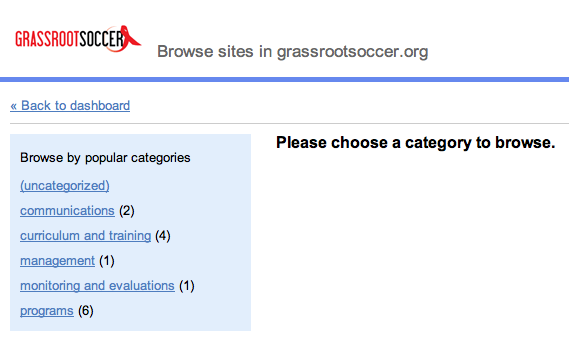
The staff has created a number of sites to organize and share information. The organization is made up of various departments including Communications, Programs, Monitoring and Evaluation, and Curriculum & Development. Here’s a snapshot of the nonprofit’s site dashboard.
Let’s dig deeper into a few of the individual sites and see what Site features they utilize. Under the Programs category, there is a site dedicated to one of GRS’s most popular program types called a Voluntary Counseling and Testing (VCT) Tournament. Essentially these are large youth soccer tournaments where there is a testing center on site for youth and spectators to be tested for HIV. You can imagine how much planning goes into one of these events, and the VCT Google Site is a repository for all the key documents needed to put on this event.
The programs team uses the
File Cabinet
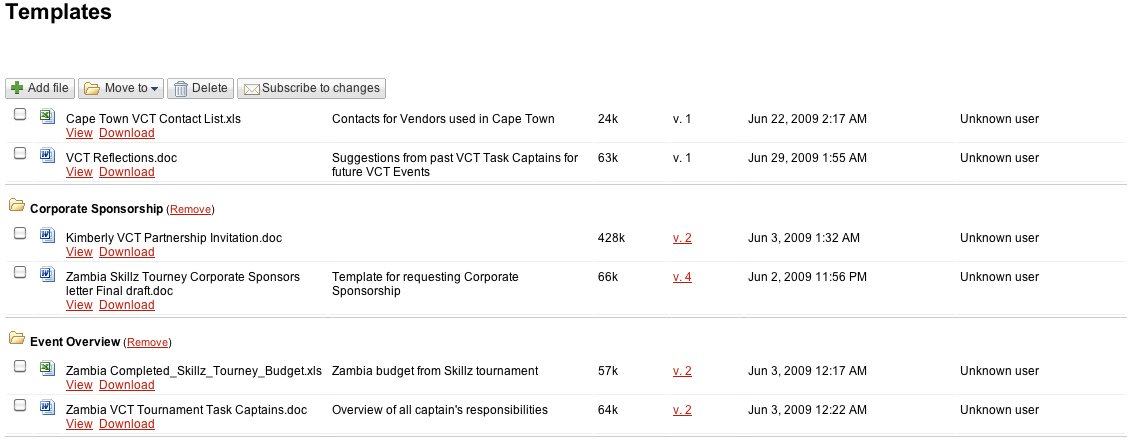
feature of Google Sites to host all the document templates needed when running a VCT. Using a File Cabinet allows GRS to:
Create folders to categorize their documents for easier organization.
The File Cabinet holds everything from vendor contact lists, to letters to schools informing them of the tournament, to the surveys used for monitoring and evaluation at the event, being able to categorize these templates into folders makes them easier to find.
Allows them to add, delete, or move files within the cabinet.
The File Cabinet allows the easy ability of editing what’s included in the File Cabinet, by doing so directly in the site. Your changes are reflected on the site and anybody can subscribe to receive emails when a change is made to the cabinet.
For more details on how GRS users the File Cabinet see the screenshot below:
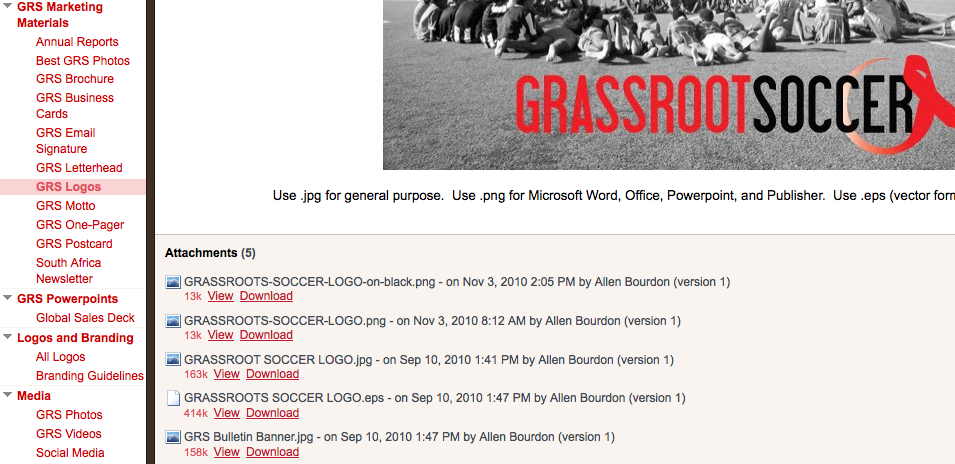
Google Sites, like Google Docs, can also store more than just documents, so if you want an eclectic range of file types together, it’s possible. Under the Communications category, Grassroot Soccer has a site called the “Brand Book.” This site holds documents, photos and videos related to their marketing, communications, and branding strategy. Let’s say for example, a GRS staff member in Zimbabwe is curious as to what letterhead to use to write an official document to the ministry of health, or they want to order business cards for themselves, they can check the “Brand Book” to access the most up-to-date templates for letterhead or business cards. Grassroot Soccer uses
Attachments
to simply attach the relevant documents to the bottom of the sites page. Because hosting your documents on sites allows you to easily mix documents with other media, on the Brand Book site you’ll also find top GRS photos and videos.
In terms of site management, the staff members of each departments manage their departments’ sites, and everyone within Grassroot Soccer can see every site.
Now that you’ve seen how Grassroot Soccer uses Google Sites to host their files and documents, try it out and let us know if it’s working for your organization by posting on the
Google Discussion Forum.
Posted by Carolyn Wendell, Consumer Operations Team
Document Hosting With Google Products
Tuesday, October 11, 2011
Part One Of A Two Part Series
Recently, I’ve been hearing a fair amount of buzz amongst nonprofits about wanting Google products to act as a “file server” for their organization. Google Docs and Sites can allow for storage and access by all different computers, providing a lot of similar functionality as nonprofits rely on from "file servers”. Children’s Radio Foundation and Grassroot Soccer have used Google Docs and Sites in two very different ways to provide document hosting and sharing across their organization.
We sat down with these two organizations to learn more about how Google has provided a free and easy alternative to server hosted solutions. This week we’ll focus on the Children’s Radio Foundation (CRF). We interviewed Tom Henry, CRF Board Member to learn more about how the organization uses Google Docs to host their files.
The Children’s Radio Foundation
(CRF) is a nonprofit based in Cape Town, South Africa that focuses on using the rich subtext of radio media to give young people a voice, and empower them to contribute to individual and social change.
Tom Henry, a volunteer for CRF has greatly helped the organization by designing a method for them to host and share files using Google Docs. One of Tom’s favorite Google Docs features is
collections
, which allows him to label related files and group them into folders that can then be
shared
with others across the organization.
What benefits does Tom see of using Docs and collections?
Advanced Sharing Options
: With collection’s advanced
sharing options
, Tom can choose who can view, comment and edit the various collections.
Multiple Collections
: Tom can create multiple collections, each representing a key part of the organization (eg. Legal information, Board information, etc.), and program-related collections named by the country where the program exists.
Multiple file types
: Collections can include files of all types including PDF’s, spreadsheets, and text documents.
Direct upload or Convert to Google Docs
: When uploading docs to collections, Tom most frequently uploads text documents and spreadsheets and then
converts them into Google Docs
, allowing employees the ability to edit and collaborate on these docs online, upon upload. However, at times, Tom would prefer to upload them in the original PDF format, without conversion to the Google Doc equivalent, making sure he is holding the integrity of the document.
The most useful feature to Tom was the
Advanced Sharing Options
offered by collections. Tom would share the collections and give people across the organization access, assigning them privileges that made sense for their job role. For example, he would give his admin view access to several of the collections, whereas he would give the other directors edit access to the collection. Everyone could edit or view collections shared with them by going into their Google Docs account and looking in the left hand column under “Collections Shared with me.”
Now that you’ve seen how CRF uses Google Docs, try it out and let us know if it’s working for your organization by posting on the
Google Discussion Forum
.
Posted by Carolyn Wendell, Consumer Operations Team
Google Apps Highlights
Friday, September 23, 2011
(Cross-posted from the
Official Google Blog
)
This is part of a regular series of Google Apps updates that we post every couple of weeks. Look for the label “
Google Apps highlights
" and subscribe to the series. - Ed.
It’s back-to-school season, and we’ve made Gmail, Google Docs, Calendar and Sites easier to use and more powerful for students and non-students alike—including some important accessibility improvements to help blind users be productive in our apps.
Multiple sign-in and other new preferences in Gmail for mobile
On Wednesday, we added some
helpful new features
for people who use Gmail on a mobile browser. You can now sign in to more than one Gmail account at a time, and toggle between them easily from the account switcher menu at the bottom of the mobile inbox. This can be a good time saver if you have multiple accounts or share a mobile device with family members. Gmail for mobile also now enables you to set up mobile-specific email signatures and create vacation responders right from your phone to let people know when you won't be available by email.
Calling credit auto-recharge
Now you can
automatically add international calling credits
for phone calls in Gmail when your balance gets low. Just visit the "Billing" area of the Google Voice settings page and click "Add credit" to put your account on cruise control.
Allow people to comment but not edit in documents
Sometimes, you might find yourself in situations when you’d like to share a document for feedback, but don’t want to make the document's content fully editable. The
comment-only level of access
launched last week is a nice option for these scenarios. You can let others discuss and add their thoughts to your document—without allowing them to change your work. You can allow document comments from specific individuals or groups, from anyone belonging your organization or from the general public.
Format painter, Fusion Tables, drag & drop images and vertical cell merge
Comment-only access isn't all that we've added to Google Docs over the last few weeks. Other
notable improvements
include a text format painter in documents, which is a fast way to copy and paste font, size, color and other text styling. Spreadsheets now support vertically merged cells (in addition to horizontal merges). In drawings, you can drag images from your desktop to the drawing canvas, then continue editing your graphic. We also added Fusion Tables as a new document type in the documents list.
Fusion Tables
are a powerful way to gather, visualize and collaborate on large data sets that might be unwieldy in a typical spreadsheet.
Fusion Table data visualized on an interactive map
Accessibility improvements in Google Calendar, Docs and Sites
We think technology can do a better job getting out of people’s way and helping you be more productive with less complexity and fewer frustrations. In this spirit, we’ve recently made a series of improvements to make our applications more accessible to blind users. We have more work to do, but Google
Calendar
,
Docs and Sites
now offer better support for screen readers and improved keyboard shortcuts. We hope these changes make our applications more useful to all users.
Who’s gone Google?
Organizations are moving to Google Apps for a diverse set of reasons—including cost savings, streamlined teamwork and better mobile access. We’ve even started hearing from schools and businesses who have made the switch to
reduce their impact on the environment
. No two organizations choose Google Apps for the exact same reasons, but in total, the momentum of Google Apps keeps growing.
We recently shared the news that
61 of the top 100 universities
ranked by
U.S. News and World Report
have gone Google. On the business side, there are now more than
4 million companies
using Google Apps, and businesses are joining at a rate of over 5,000 per day. In all, there are more than 40 million users that regularly use Google Apps in their organizations.
I hope these product updates and customer stories help you and your organization get even more from Google Apps. For more details and the latest news, check out the
Google Apps Blog
.
Posted by Jeremy Milo, Google Apps Marketing Manager
Live Webinar: Accessibility Updates for Docs, Sites and Calendar
Thursday, September 15, 2011
(Cross-posted from the
Official Google Enterprise Blog
)
Earlier this year, members of the blind community shared a powerful message with us about the importance of accessibility. On the Official Google Blog, we
announced
some accessibility enhancements to our products, including new keyboard shortcuts and improved screen reader support in
Google Docs, Google Sites
and
Google Calendar
. For blind students and employees who rely on assistive technologies to access the web, we hope these improvements will make it easier to use our products.
To answer your questions and discuss how today’s product updates affect blind users in businesses, governments and schools using Google Apps, we’d like to invite our enterprise customers to join us for a webinar on September 21.
Accessibility Updates for Docs, Sites and Calendar
Wednesday, September 21, 2011
12:00pm-1:00pm PT
Sign up
here
To learn more about accessibility features in Google Apps, please visit our
help center
. For information more generally about using Google products with screen readers, how to send us feedback and how to track our progress, visit
google.com/accessibility
.
Posted by Naomi Black, Technical Program Manager, Accessibility
Labels
AdWords Basics
98
AdWords in the Curriculum
9
Google Analytics
9
Google Apps
25
Google Apps Highlights
10
Google Earth
18
Google Earth Outreach
28
Google for Nonprofits Blog
529
Google Fusion Tables
2
Google Maps
10
Google Products
63
Google Sketchup
2
Google+
16
Grantees
98
Grants Program
97
Optimization
59
Program Alerts
15
Resources for Non-Profits
179
Tracking Performance
35
YouTube
26
Archive
2016
Sep
Aug
Jul
Jun
Apr
Mar
Jan
2015
Nov
Sep
Aug
Jul
Jun
May
Apr
Feb
2014
Nov
Oct
Aug
Jul
Jun
Apr
Feb
2013
Dec
Nov
Oct
Sep
Aug
Jul
Jun
May
Apr
Mar
Feb
Jan
2012
Dec
Nov
Oct
Sep
Aug
Jul
Jun
May
Apr
Mar
Feb
Jan
2011
Dec
Nov
Oct
Sep
Aug
Jul
Jun
May
Apr
Mar
Feb
Jan
2010
Dec
Nov
Oct
Sep
Aug
Jul
Jun
May
Apr
Mar
Feb
Jan
2009
Dec
Nov
Oct
Sep
Aug
Jul
Jun
May
Apr
Mar
Feb
Jan
2008
Dec
Nov
Oct
Sep
Aug
Jul
Jun
May
Apr
Mar
Feb
Feed
Google
on
Follow @googlenonprofit
Follow










 Follow